

Task Session allows you to connect Outlook and Microsoft 365 email accounts using the Microsoft Graph API. This setup is best for businesses using Microsoft 365, Exchange Online, or Outlook mailboxes with secure OAuth login. Once connected, users can sync inbox emails, send replies, forward messages, and manage business communication directly inside Task Session.
Why Use Outlook API?
Outlook API is the recommended option when your business email is hosted on Microsoft 365 or Exchange Online. It provides secure OAuth-based access instead of storing mailbox passwords directly. This makes it more reliable and safer for teams that manage customer emails, support requests, sales conversations, or internal communication inside Task Session.
Prerequisites
Before starting the Outlook setup, make sure you have:
Admin access to your Task Session panel
Microsoft Azure / Entra ID access
A Microsoft 365 or Outlook business mailbox
A public HTTPS domain
Correct server time and timezone configured
The exact Outlook callback URL from Task Session email settings
OAuth callbacks usually require HTTPS, so your domain must have a valid SSL certificate before connecting Outlook.
Step 1: Register an App in Azure Portal
First, open the Azure Portal and go to Microsoft Entra ID. From there, open App registrations and click New registration.
Choose the supported account type based on your business needs. For one company only, use single-tenant. For multiple organizations, use multi-tenant.
Step 2: Add Redirect URI
After creating the app, open the Authentication section.
Add the Web redirect URI shown inside your Task Session email settings page. It usually looks like:
Make sure the redirect URI is exactly the same. The domain, protocol, path, and spelling must match perfectly, otherwise Microsoft will show a redirect URI mismatch error.
Step 3: Create Client Secret
Now open Certificates & secrets in your Azure app.
Create a new client secret and copy the secret value immediately. Microsoft may not show the full secret again later, so save it safely before leaving the page.
Step 4: Add Microsoft Graph API Permissions
Go to API permissions and add the required Microsoft Graph delegated permissions for email access.
These permissions are used for mail reading, sending, and syncing inside Task Session. If your organization requires admin approval, click Grant admin consent after adding permissions.
Step 5: Connect Outlook in Task Session
Open your Task Session admin panel and go to Email Settings.
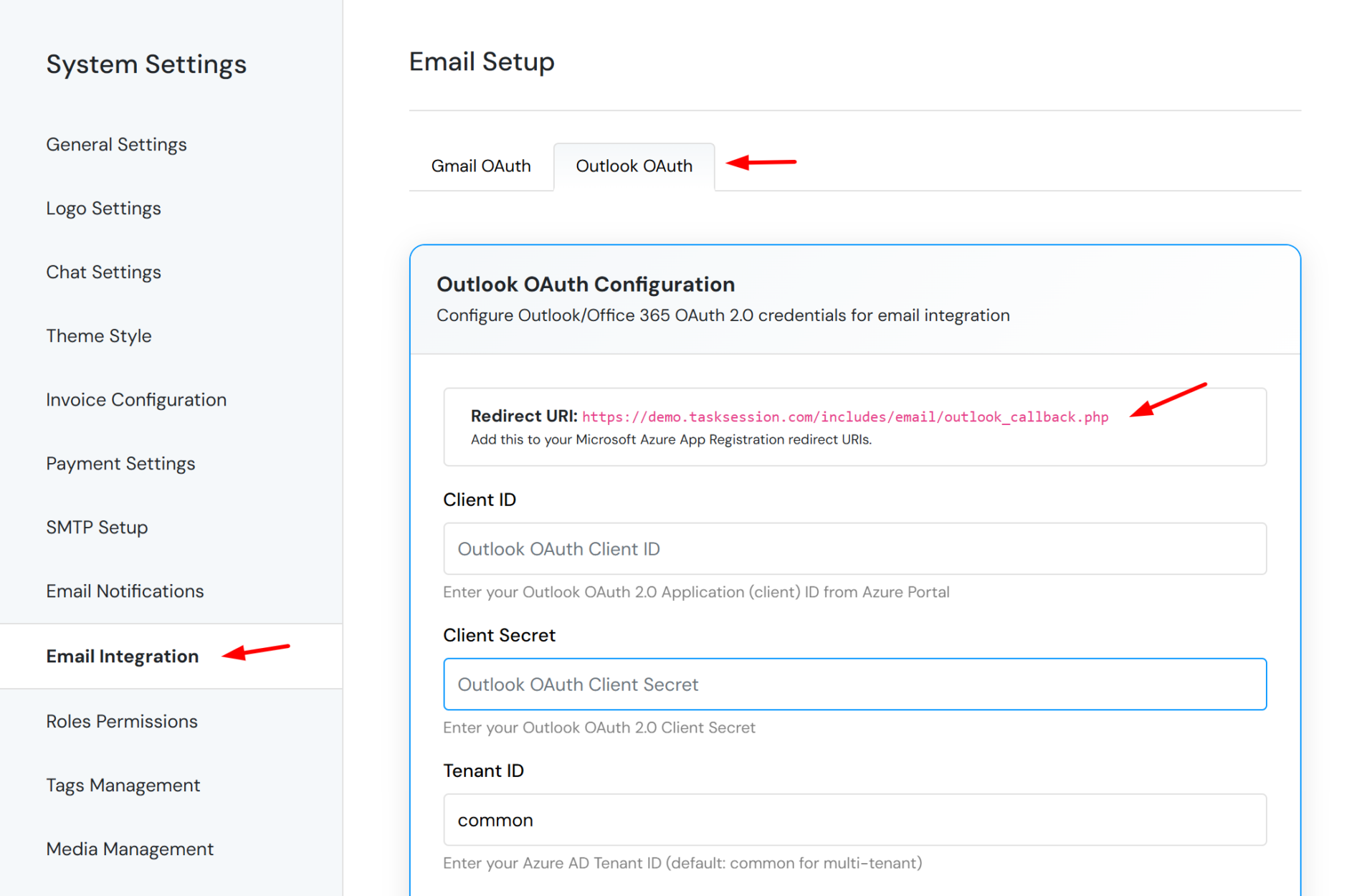
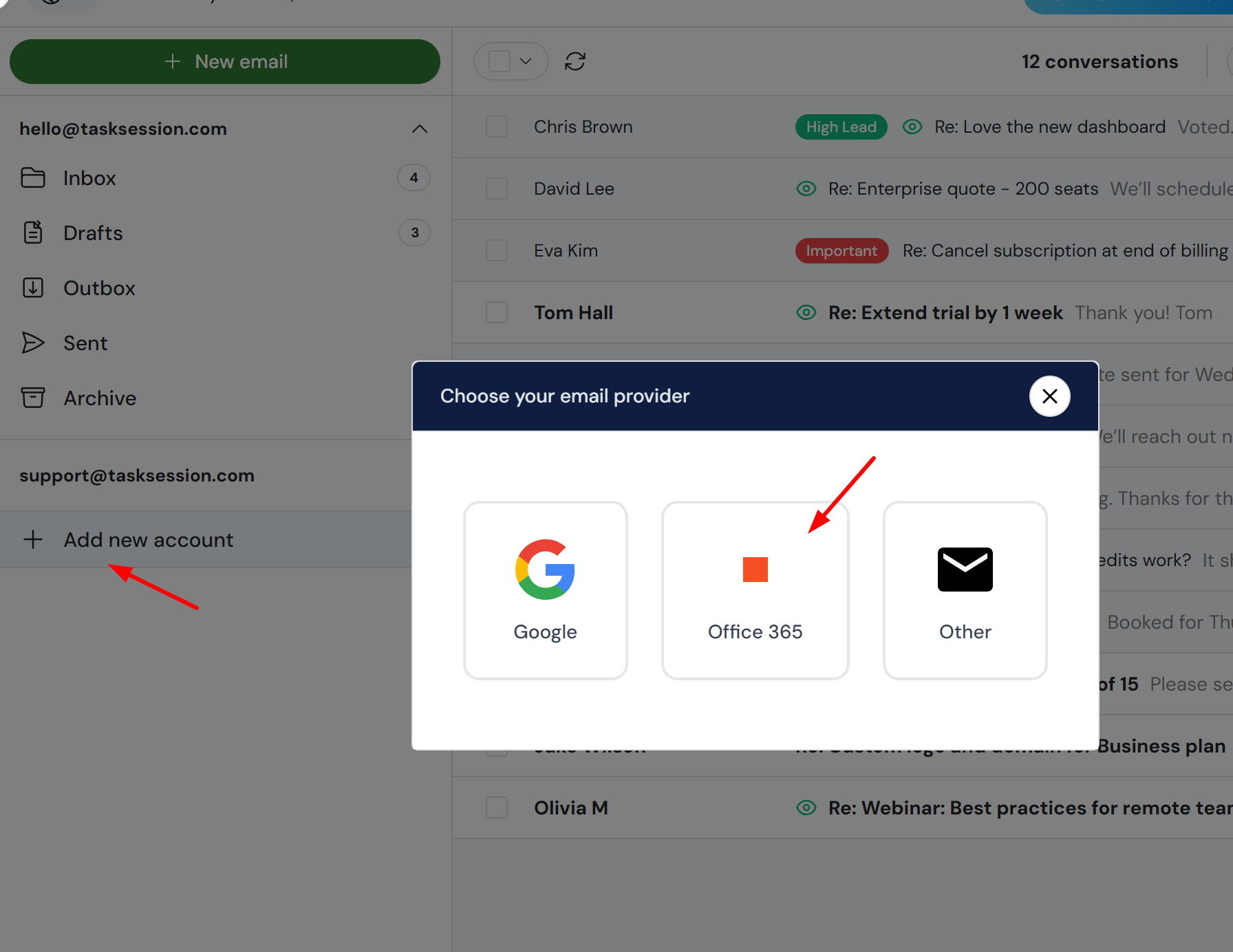
Select Outlook as the provider. Then paste the required Microsoft app details:
Application / Client ID
Client Secret
Tenant ID, if required
After adding the credentials, click Connect and complete the Microsoft login and consent process.
Step 6: Verify Outlook Email Sync
Once Outlook is connected, run a manual sync from the inbox page.
Check that:
New emails appear in Task Session
Email threads open correctly
Reply and forward options work properly
Test email sending works
Inbox sync runs without errors
This confirms that your Outlook account is connected successfully.
Common Outlook Connection Issues
OAuth Redirect URI Mismatch
This usually happens when the callback URL in Azure does not exactly match the URL shown in Task Session. Check HTTPS, domain name, folder path, and spelling carefully.
Permission or Consent Error
If your Microsoft organization has strict security policies, admin consent may be required before the mailbox can connect.
Sync Error
If inbox sync fails, check the Task Session email sync logs and confirm that Microsoft Graph permissions are correctly added.
Emails Send But Inbox Does Not Sync
This usually means send access is working, but read/sync permission is missing or not approved.
Security Best Practices
Use dedicated Microsoft app credentials for Task Session integration. Do not reuse personal app keys. Rotate client secrets regularly, keep SSL active, use minimum required permissions, and restrict admin access to trusted users only.
Final Words
By connecting Outlook through Microsoft Graph API, Task Session can securely sync and send business emails from Microsoft 365 and Outlook accounts. This setup is ideal for companies that want a secure, professional, and centralized way to manage client communication inside their CRM.
