
+Setup+Guide)
This guide explains how to configure system email delivery in Task Session so automated emails send reliably.
Table of Contents
- Where to configure
- Why system SMTP is required
- Why default PHP Mail is not enough
- Step-by-step SMTP setup
- Common SMTP provider settings
- Test your configuration
- Troubleshooting
- Summary
Where to configure
Go to:
Admin > SMTP Setup (or System Settings > SMTP Setup, depending on your menu labels)
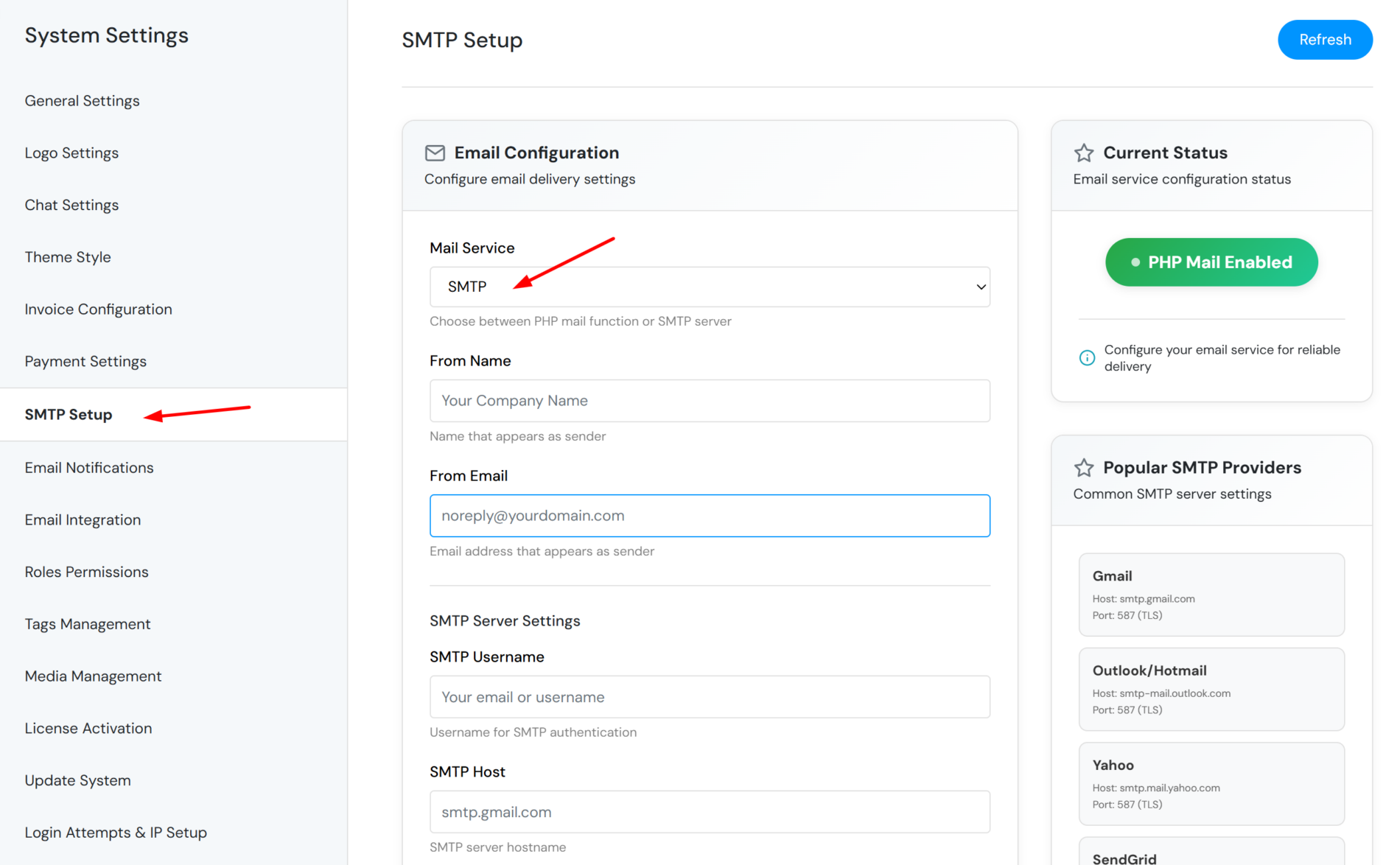
Page path: admin/smtp-setup.php
Example URL: https://yourdomain.com/admin/smtp-setup.php
Only admin users can access this page.
Why system SMTP is required
Task Session sends many emails automatically from the application itself. If mail is not configured properly, users may never receive important messages even when the rest of the system works fine.
System emails include:
- User invitations and welcome emails
- Password reset and account verification emails
- Chat and project notification emails (when cron sends them)
- Task, project, and discussion email alerts
- Scheduled summary or report emails
- Other automated messages from templates in
admin/email-setting.php
These emails are sent by the system using the global mail settings saved in admin/smtp-setup.php.
Without proper SMTP setup you may see:
- Emails never arriving (especially on shared hosting)
- Messages going to spam or junk folders
- Password reset links not reaching users
- Chat/notification emails failing silently
- Test emails failing while the rest of the CRM looks normal
For production use, always configure a real SMTP server — do not rely on the default PHP mail option.
Why default PHP Mail is not enough
On admin/smtp-setup.php, the first option is Default PHP Mail. This uses PHP’s built-in mail() function. It may work on some servers, but it is not recommended for production.
Common problems with PHP Mail:
- Poor deliverability — many hosts send PHP mail through a generic server address. Gmail, Outlook, and Yahoo often mark these as spam or reject them.
- No proper authentication — PHP mail usually does not log in to your mail provider with username/password, so receiving servers cannot verify the sender.
- Wrong or missing sender identity — the “From” address may not match the server sending the mail, which triggers spam filters.
- Hosting blocks — shared hosts often disable or limit
mail()to reduce abuse. - No delivery feedback — failures are hard to trace; the system may think an email was sent when it was not.
- Not suitable for business email — no SPF/DKIM alignment through your domain’s mail service when sent this way.
Recommendation: Select SMTP on the setup page and use your company mail server, hosting SMTP, or a transactional provider (SendGrid, Mailgun, Amazon SES, etc.). This gives authenticated, reliable delivery.
Step-by-step SMTP setup
- Log in as admin and open
admin/smtp-setup.php. - Under Mail Service, select SMTP (not Default PHP Mail).
- Fill in From Name — e.g. your company name (shown to recipients).
- Fill in From Email — use a real address on your domain, e.g.
[email protected]or[email protected]. - Enter SMTP Username — usually the full email address or SMTP login from your provider.
- Enter SMTP Host — e.g.
smtp.gmail.com,smtp-mail.outlook.com, or your host’s SMTP hostname. - Enter SMTP Port — commonly
587(TLS) or465(SSL). - Enter SMTP Password — use your mailbox password or an app-specific password where required (Gmail/Google Workspace often require an App Password).
- Select Encryption Type — typically TLS for port 587, or SSL for port 465.
- Click Save Settings.
On the same page you can click a popular provider (Gmail, Outlook, Yahoo, SendGrid) to auto-fill host, port, and encryption — then add your username and password.
Common SMTP provider settings
- Gmail / Google Workspace
Host:smtp.gmail.com· Port:587· Encryption: TLS · Use App Password if 2FA is enabled. - Outlook / Microsoft 365
Host:smtp-mail.outlook.com· Port:587· Encryption: TLS · Note: some tenants disable basic SMTP auth; use a dedicated SMTP-enabled mailbox or relay if needed. - Yahoo
Host:smtp.mail.yahoo.com· Port:587· Encryption: TLS - SendGrid
Host:smtp.sendgrid.net· Port:587· Encryption: TLS · Username oftenapikey, password is your API key. - cPanel / hosting mail
Use SMTP details from your hosting panel (oftenmail.yourdomain.com, port 587 or 465).
Test your configuration
After saving:
- Scroll to Test Email Configuration on the same page.
- Enter your email address.
- Click Send Test Email.
- Check inbox and spam folder. If it fails, review host, port, encryption, and password.
Always run a test after any SMTP change.
Troubleshooting
Test email fails:
- Confirm SMTP is selected (not PHP Mail).
- Verify host, port, and TLS/SSL match your provider.
- For Gmail, use an App Password — normal password may be blocked.
- Check firewall/host allows outbound SMTP on your port.
Test succeeds but users still get no emails:
- Check email templates at
admin/email-setting.php. - Ensure cron jobs are running (
admin/cron.php/ server schedule). - Review chat/notification settings at
admin/chat-settings.php.
Emails go to spam:
- Use a From address on your own domain.
- Set up SPF, DKIM, and DMARC with your DNS/hosting provider.
- Avoid PHP Mail; use authenticated SMTP.
PHPMailer warning on the page:
- SMTP requires PHPMailer. Ensure
includes/PHPMailer/is present on the server. Without it, the system may fall back to PHP mail(), which is unreliable.
Summary
- Configure system email at
admin/smtp-setup.php. - System SMTP powers automatic emails — invites, resets, notifications, and cron mail.
- Default PHP Mail is not reliable for production; use SMTP with proper authentication.
- Always save settings and send a test email after setup.
